Friday, October 2, 2015

Android Studio 1.4

0 comments

Today we are releasing the 1.4 update to the Android Studio stable release channel. Most of the work and enhancements for Android Studio 1.4 are under the hood. However we have a handful of new features that we hope you enjoy and integrate into your workflow.


Android Studio 1.4
Read more...

Wednesday, September 30, 2015

Nexus 6P, Nexus 5X and Pixel C Everything you need to know

0 comments

Nexus 6P, Nexus 5X and Pixel C  Everything you need to know


Nexus 6P, Nexus 5X and Pixel C Everything you need to know
Read more...

How to create anything in Android

0 comments

Course Summary


Here is one important question Android developers ask while making apps: “How can I do ________ in Android?”


The following are versions of this question that we came across recently:


  • How can I add radio buttons to my app?

  • How can I play a sound?

  • How can I navigate between multiple screens?

This course is a collection of such questions and their answers.


By the end of this course you will have mastered the ability to implement new Android features by reading a blog or article — this is a critical skill possessed by professional Android developers. As a result, you will also be able to use several User Interface components — like Toggle Buttons, Menus, Grid View and many more — that are central to making functional and delightful Android apps.


Start Free Course “How to create in Android”


How to create anything in Android
Read more...

Tuesday, September 29, 2015

Google Play APK size limit increased to 100MB from 50MB

0 comments

To support the growing number of developers who are building richer apps and games on Google Play, we are increasing theAPK file size limit to 100MB from 50MB. This means developers can publish APKs up to 100MB in size, and users will see a warning only when the app exceeds the 100MB quota and makes use of Expansion Files. The default update setting for users will continue to be to auto-updating apps over Wi-Fi only, enabling users to access higher quality apps and games while conserving their data usage.


Even though you can make your app bigger, it doesn’t always mean you should. Remember to keep in mind the following factors:


  • Mobile data connectivity: Users around the world have varying mobile data connectivity speeds. Particularly in developing countries, many people are coming online with connections slower than those of users in countries like the U.S. and Japan. Users on a slow connection are less likely to install an app or game that is going to take a long time to download.

  • Mobile data caps: Many mobile networks around the world give users a limited number of MB that they can download each month without incurring additional charges. Users are often wary of downloading large files for fear of exceeding their limits.

  • App performance: Mobile devices have limited RAM and storage space. The larger your app or game, the slower it may run, particularly on older devices.

  • Install time: People want to start using your app or game as quickly as possible after tapping the install button. Longer wait times increase the risk they’ll give up.


Google Play APK size limit increased to 100MB from 50MB
Read more...

Saturday, September 26, 2015

Working with Android image library Picasso

1 comments

In this quick tip, we take a brief look at the popular Android image library, Picasso. It’s a simple and practical library created and maintained by Square. It is great for working with images in your Android projects.


Working with Picasso - AndroidCodeGeeks.com

Working with Android image library Picasso – AndroidCodeGeeks.com


Picasso is an image library for Android. It’s created and maintained by Square, and caters to image loading and processing. It simplifies the process of displaying images from external locations. In many cases only a few lines of code is required to implement this neat library.


Picasso shines for displaying remote images. The library handles every stage of the process, from the initial HTTP request to the caching of the image. This can be quite verbose when writing code to perform these actions yourself. In this quick tip, we look at a few common use cases.


Start by downloading the JAR file from Picasso’s website. Installing is done the usual manner. If you need help with this step, then take a look at this tutorial by Shane Condor and Lauren Darcey.


If you’re using Android Studio, then you can add


compile 'com.squareup.picasso:picasso:2.3.3'

to the build.gradle file in the dependency section.


Create a new project in your IDE of choice. Make sure to select a blank Activity if you’re using Android Studio.


Open the layout file for the main Activity. We need to add an ImageView to the layout. It doesn’t need to be fancy. The following code snippet shows you what I mean.


<ImageView
android:layout_width="wrap_content"
android:layout_height="wrap_content"
android:id="@+id/imageView"
android:layout_alignParentTop="true"
android:layout_centerHorizontal="true" />


Navigate to the main Activity file. Add the following code block to the onCreate method.


ImageView imageView = (ImageView) findViewById(R.id.imageView);
Picasso.with(this)
.load("https://cms-assets.tutsplus.com/uploads/users/21/posts/19431/featured_image/CodeFeature.jpg")
.into(imageView);

In the first line, we get a reference to the ImageView instance in the layout file. We then load an image into the image view using the Picasso library. We first specify the context by calling with and passing in the context. We then call the load method and supply it with the location of the image, a URL in this case. Finally, we tell Picasso where it should display the image when it’s fetched by calling into and pass in the imageView object.


Your IDE will ask you to import the Picasso library. However, to do this manually add the following import statement at the top of the Activity class.


import com.squareup.picasso.Picasso;


For Picasso to do its work, make sure to add <uses-permission android:name="android.permission.INTERNET" /> to your project’s manifest.


That’s pretty much it. If you build and run the application, you should see the image load on the screen.


Picasso has much more tricks up its sleeve. In the following example, we use Picasso to fetch a remote image and resize it before displaying it in an image view.


Picasso.with(this)
.load(https://cms-assets.tutsplus.com/uploads/users/21/posts/19431/featured_image/CodeFeature.jpg)
.resize(100, 100)
.into(imageView)

Picasso also supports transformations, such as rotation. In the next code snippet, we fetch a remote image and rotate it 180 degrees before displaying it in an image view.


Picasso.with(this)
.load("https://cms-assets.tutsplus.com/uploads/users/21/posts/19431/featured_image/CodeFeature.jpg")
.rotate(180)
.into(imageView);

If your application relies on remote assets, then it’s important to add a fallback in the form of a placeholder image. The placeholder image is shown immediately and replaced by the remote image when Picasso has finished fetching it.


Picasso.with(this)
.load(https://cms-assets.tutsplus.com/uploads/users/21/posts/19431/featured_image/CodeFeature.jpg)
.placeholder(R.drawable.image_name)
.into(imageView);

Picasso supports two types of placeholder images. We already saw how theplaceholder method works, but there’s also an error method that accepts a placeholder image. Picasso will try to download the remote image three times and display the error placeholder image if it was unable to fetch the remote asset.


Picasso.with(this)
.load(https://cms-assets.tutsplus.com/uploads/users/21/posts/19431/featured_image/CodeFeature.jpg)
.error(R.drawable.image_name)
.into(imageView);

Note that you can combine the placeholder and error methods as shown in the following code block.


Picasso.with(this)
.load(https://cms-assets.tutsplus.com/uploads/users/21/posts/19431/featured_image/CodeFeature.jpg)
.placeholder(R.drawable.image_name_default)
.error(R.drawable.image_name_error)
.into(imageView);


With Picasso being so simple to use, it’s definitely worth thirty minutes of your time. If you’re creating an app that frequently loads images, then Picasso could well make your life that little bit simpler.


Source 


Working with Android image library Picasso
Read more...

Sunday, September 20, 2015

Google Maps Android API Lite Mode Example

0 comments

Lite Mode


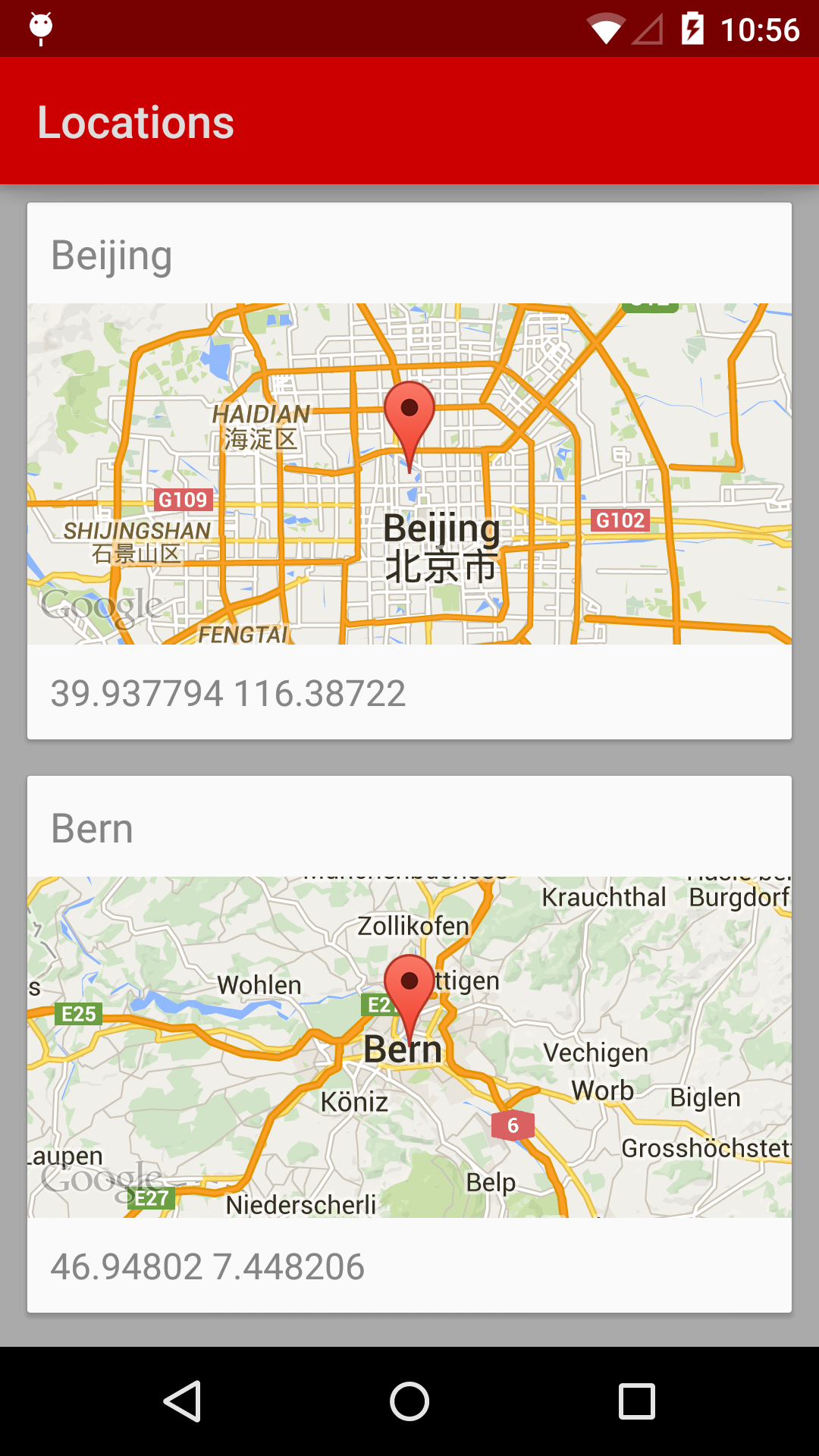
The Google Maps Android API can serve a static image as a ‘lite mode’ map.


Overview of lite mode


A lite mode map is a bitmap image of a map at a specified location and zoom level. Lite mode supports all of the map types (normal, hybrid, satellite, terrain) and a subset of the functionality supplied by the full API. Lite mode is useful when you want to provide a number of maps in a stream, or a map that is too small to support meaningful interaction.


Users viewing the map cannot zoom or pan the map. Icons on the map give users access to viewing the map in the Google Maps mobile app and requesting directions.


Find Google Maps Android API Lite Mode Example on GitHub


Google Maps API

Google Maps API “Lite Mode”


Google Maps Android API Lite Mode Example
Read more...

Friday, September 18, 2015

Material Design Snackbar using the design support library

0 comments


A Snackbar is a lightweight material design method for providing feedback to a user, while optionally providing an action to the user. They are displayed on the screen until a specified interval has passed, the user swipes to dismiss them, or when the user interacts with another part of the screen. Think of it as a modern take on the Android Toast.

This week at Google I/O 2015 the Android Design Support Library was released including a Snackbar implementation. Before now implementing and following the material guidelines for a Snackbar was left to the developer. A few third party libraries were released to make developers lives easier, but now official support for Snackbar has been introduced to make it easier than ever to add a Snackbar to your Android app.

Source: Material Design Snackbar using the design support library 


Material Design Snackbar using the design support library
Read more...

Thursday, July 16, 2015

AndroidCodeGeeks | The Android Knowledge Base

0 comments


Android Code Geeks is knowledge base which maintain categorize android tutorials which will help android developers to find the best articles,videos and examples.

Website : AndroidCodeGeeks.com
Twitter : @AndroidCodeGeek
FB : AndroidCodeGeeks on Facebook
Read more...

Thursday, January 29, 2015

Android-Libs.com for Android Developers

0 comments
Android developers gain a lot of advantages from working on a platform with a wide variety of libraries, open source projects, and other resources to help get their work to the finish line. Unfortunately, if a problem can’t be solved by checking out the SDK samples or reading a few dozen StackOverflow questions, it can be pretty hard to find good alternatives when they are most needed. Before giving up on the tricky problems, or possibly before attempting them, check out Android-Libs.com – a registry of open source code, libraries, handy websites, utilities, and other tools that may be useful to Android developers of all types.
Most entries link back to Github project pages with embedded counters for the number of open issues, forks, watchers, and stars. Beyond these statistics, most resources also include a short description, minimum API level (if relevant), a screenshot, a Gradle compile line to include libraries, and a few other details. Finally, everything has been sorted into a pretty lengthy list of categories for easy browsing, and there is a search box that queries project titles and descriptions.
If you’re looking for a library or shortcut to get a certain feature working right out of the gate, or trying to find a good solution after spending hours running into a wall, take a look at Android-Libs. It’s always great to see another helpful resource for the Android development community. The site is even open source on Github, in case there is something useful to learn from checking out the code.
The registry is updated regularly, but most of the activity is also published to an RSS feed and a custom PushBullet channel, so it's easy to see when new additions make it to the list. It's definitely worth checking out Android-Libs.com and bookmarking it for the future.
Read more...

Saturday, March 8, 2014

Android Libs Org

0 comments
Android Libs | Android Libs is a place to gather all open source Android UI Views, Android Libraries, Android Tools and Plugins

Android Libs Org


Android Libs Org | Android Libs Org is a place to gather all open source Android UI Views, Android Libraries, Android Tools and Plugins


Android Libs Org will help you to find the  UI Views, Libraries, Tools and Plugins.

If you found a good Android Library do not forget to contact  Android Libs Org and let them know to update it.


Android Libs Org | Android Libs Org is a place to gather all open source Android UI Views, Android Libraries, Android Tools and Plugins


Contribute to AndroidLibs.Org


Read more...